
Help Centre - Frequently Asked Questions
Search
Complete FAQ Listing
- I need an instant password reminder/ I can't login
- How do I print my tree?
- How do I stop my subscription/ renewal payment before it is due?
- How Do I Delete My Tree?
- How do I view trees that have been shared with me?
- How much are pay-per-view credits?
- What is the Keepsafe?
- How do I import or export a gedcom file?
- Where are my Hot Matches?
- What subscriptions do you offer?
- How much does it cost?
- How can I pay?
- How Can I Take Out A Free Trial?
- I don't want to renew my subscription - how do I cancel it?
- Will I Be Charged Anything For The Free Trial?
- How do I change the card I pay with?
- When will you renew my subscription?
- Why has my renewal payment failed?
- I want to change my subscription
- I would like a refund of the payment that I made
- What is Gifting?
- How do I redeem a gift voucher?
- How do I print out my family tree?
- Why can't I see the 'Save' tab on my details panel?
- How do I add a name to my tree?
- How do I edit details already in my tree?
- How do I view other trees?
- Why can't I see all of my shared trees on my dashboard?
- How do I remove someone from my tree?
- How do I change the parents of someone in my tree?
- How do I change my root person/tree owner?
- Where are my relation's photos and notes?
- Exporting Gedcoms
- Importing Gedcoms
- What are Relative Profiles?
- What is the upload limit for adding to keepsafe?
- Why do I see an error when trying to view my tree?
- What is the List view?
- Adoption
- How do I upload a photo to my tree?
- Deleting your Family Tree
- Building your Family Tree
- Viewing your Family Tree
- Printable Charts
- Living relatives
- Privatising your Family Tree
- Which Census records do you have?
- Which BMD records do you have?
- Which British Newspapers do you have?
- How much do records cost?
- Where are the Parish records?
- Which Military records do you have?
- Which Parish records do you have?
- Which Travel and Migration records do you have?
- British Newspaper Archive
- Scottish and Irish records
- Using the Birth/Marriage/Death records - UPDATED
- Why can't I view newspaper articles?
- Will I be charged if I try to view a record again?
- Ordering certificates
- What are the Electoral Roll records?
- Saving the records
- Reporting errors with records
- Searching the census - UPDATED
- How do I get a password reminder?
- Trouble signing in/ login details not accepted
- I want to delete my registration
- I have a new email address - how do I update my membership?
- I seem to have more than one registration
- I have multiple registrations with my email address, do I need to do anything?
- Please remove me from your mailing list
- How do I update my message board profile?
- How do I make the text bigger or smaller on my screen?
- Online safety
Frequently asked questions - search for an answer
Please either select a FAQ from the menu below or enter a search term and click 'search'.
If you cannot find an answer to your question you will be able to contact our dedicated support team who will be able to answer all your questions
The Support Team's working hours are Monday to Friday 8am - 6pm and we will answer all emails within 2 - 3 days.
The Genes Reunited Team
Electoral Roll records
Looking for living relatives?
Search our UK Electoral Rolls (2002-2013) and find your living relatives today.

The British Newspaper Archive

Read about historical events at the time they were happening. Perhaps you'll discover your ancestor in their local newspaper?
New Military Records
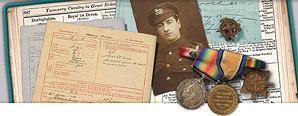
Was your ancestor a war hero?
View thousands of new military records including Chelsea Pensioner records, Military Nurses, Prisoners of war and much more.
Gift subscriptions

Do you know someone interested in discovering their family history?
You can now buy a gift subscription to Genes Reunited so they can research their family tree.